Windows 10 and earlier versions ship with a couple of good screen savers. Many users even download cool third-party screensavers to make their desktops look cool.
While the built-in screen saver feature in Windows allows you to set photos as a screensaver, it does not allow you to set a video file as a screensaver. If you are looking for a way to set a video file as a screensaver or want to create a screen saver out of a video file, then this guide is for you.
Yes, you can either directly set a video file as a screensaver or create a screensaver from a video file of any format and then set it as the screensaver.
Following are the two ways to set a video as a screensaver in Windows 10:
1. Using Videos directly without creating a screensaver file.
2. Using a Video file as a screensaver after converting it to an exe file.
Method 1 of 2
Set video file as screensaver
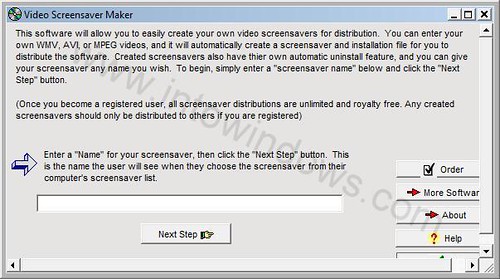
This is the simplest method, as you need not convert your video file into an executable file to use it as a screensaver. In this method, we use a small application named” Video Screensaver Maker” that allows us to use a Video file as a screensaver.
To start with this method, we need to download Video Screen Saver Maker software from here. Video Screen Saver Maker plays AVI, MPEG, and WMV video files as a screensaver with random video support. That is, you can select a set of Video files to play as a screensaver.
Advantages of Video Screensaver Maker:
– Create screensavers that have your own screensaver name.
– Ability to add a link button that opens directly to your website, driving more traffic to your site.
– Created screensavers run on all Windows systems.
– Add WMV, AVI, or even MPEG video types. You can even mix all 3 types.
– Add custom audio files that play while the videos play.
Method 2 of 2
Create a screen saver from a video file
This is a long method compared to the previous method, as we create an actual screensaver. Here, the advantage is you can even distribute the video screensaver file among your friends, and the new screensaver can be used on any Windows machine without using a third-party application.
In this guide, we have to use two free utilities if you don’t have video files in FLV format. You can use a free converter, like SuperVideo, that allows you to convert any video files into FLV format. Once you have an FLV format video, download and install another application called “InstantStorm.” InstantStorm utility creates Flash-based screensavers with many advanced features. You can download it from here.
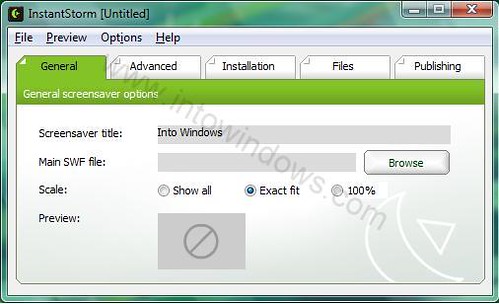
Install the downloaded InstantStorm installer file and start it up. Just input the file you want to use as Screensaver by clicking the browse button and navigating to your FLV file. It will give you an executable file, which, when opened, becomes the video screensaver of your Windows machine.
Peril Notion says
what if you broke your videos down frame by frame and displayed the. at like 30/fps or something like that for example…
Marc says
One did not work at all on Win7 (Screen Saver Maker) and the other one is malware. Don’t use this.
Richard Murray says
@John Bentley
It “used” to work, until flash removed support of all flash related software. I know cause mine worked for a week, then BOOM stopped working, google news notified flash is no longer supported ;P. So now my real question is the same as your brand new question. How do we make screensavers from videos now with needing flash???
John Bentley says
Total rubbish, doesn’t work at all.
William Dogan says
There seems to be NO way to create a video screen saver for Windows 10 available at this time: December 2019!
Or is there?
These posts above are old, but they are correct about the program Video Screen SaveraMaker. I used it for years, but it does NOT work on Windows 10!
There has to be a way if Microsoft has a few. Can their videos be substituted for my own?
Be careful. When you think you read that it will work, it won’t.
Bill says
None of this works in Windows 10. Total BS.
Xander says
I don’t know if the InstantStorm screensaver maker is also full of trojans, but it also installed some extra stuff and changed all my homepages, search bars, etc when I really didn’t want it to. Also, only appears to work with SWF not FLV videos. NOT RECOMMENDED.
thegunslinger says
Yes! It absolutely works. I used the longer method on my Windows 7 x64 machine and, once I figured a way around a few glitches, it worked perfectly. No trojans, no trials, and all free. Screw those cheesy animated aquarium screensavers that cost $20. I now have an HD vid of a real tropical aquarium for mine. This tut is lacking and down right wrong in one instance. Just think your way through it and I guarantee it will work. Maybe I’ll make my own tut.
fred n says
that screensaver maker is trial software bullshit. You cant even use the screen saver with out paying them or clicking something each time
Shriram N says
I tried Video Screensaver Maker, I get the error msg “cannot find vids:mp43 decompressor”.What do I do?Is there a size limit on the file that can be used?Ur help will be much appreciated.
Perry says
None of these work on Windows 7 – the second one wants .swf files, not .flv
Television17 says
@Paul
You misspelled ‘Trojan’
Doug Pederson says
I have been doing mpg for years and using Spectate Swamp search to play them back as a screen saver. Random makes it interesting and random sampling from within a video clip even more so. Slow motion and freeze frame slow down the action.
It has wmv and avi capabilities but not to the extent as with mpg
I have even used it for large font scrolling text questions, as a screen saver. Political questions playing in a store front. Putting heat on politicians.
Video this way is easy and fun.
Paul says
Hi, I just followed your advise and links to software required for the topic mentioned, I should point out to you that the video converter to FLV files is full of Trojons.
Not nice