As you might know, Windows 7 has got major improvements in boot and response time compared to the predecessor Vista. You can also watch the boot drag race video of Windows7 and Vista showed by Microsoft at Hardware Engineering Conference recently.

Windows 7 takes just 15-17 seconds to boot up on my (C2D 2.2 GHz, 1 GB RAM) system while Vista not less than 20. Still, you can increase the boot time performance of Windows 7 & Vista using this simple trick. Although you can tweak other settings such as services and startup items, we are focusing on a single tip in this post. Of course, you can read out our “How to speedup Windows?” boot guide for more reference.
Guide to speed up Windows 7 boot process
This tip applies to the users who are running multicore processor with Windows 7 or Vista as the operating system. So, follow the below procedure to make it happen.
Step 1: Type “msconfig” (without quotes) in Vista or Windows 7 start menu search box and hit enter.
Step 2: Click Continue if you get a UAC prompt.By default, you won’t get a UAC prompt in Windows 7.
Step 3: Navigate to “Boot” tab and click on “Advanced options” button.
Step 4: Check the box named “Number of processors” and also select the number of processors from the drop down box.
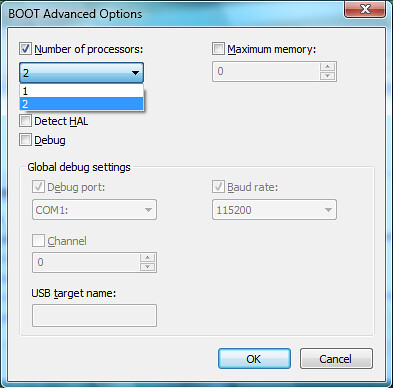
Step 5: Click “Ok” and restart to see the time difference.
Step 6: You are done.
Note: Microsoft also mentioned the importance of this tweak in their KB959233 article recently. So, go ahead and tweak it right now!
 PR:
PR:  Rank:
Rank: 
Mickey savage says
How many cores do i select for my windows 7
Jimm says
Works for me, thank you!
shankar says
Thanks for advice me
J says
Hey I did what the post said then i changed the No of processor down to 1 to see how slow it would be!
now i am trying to revert it back to 4 and the drop down menu only gives me the option of using one processor!
Is there any computer wiz’s who can help this noob out??
Larry says
fools, you don’t even know why you got duals or quads, blahahahaha, HEY, windows does not boot up in quad or dual mode. They do serve a purpose thou, you all need to do some reading. If you got a lot of stuff in your startup, booting in dual does help.
shiv says
this tip worked for me on my netbook. Toshiba nb555D
c-50 amd w/ 4gb ram
VOA says
This is awesome.
Musqueteer says
Bogus. Didnt work for me.
MagicAndre1981 says
This tweak is NONSENSE. Windows will always use all cores. With this setting you can REDUCE the used cores.
If you want to speedup Windows 7 boot follow this guide if you use a HDD:
http://www.msfn.org/board/index.php?showtopic=140262
Russ says
I tried this tip ages ago when I was using Windows Vista and it didn’t seem to make much if any difference then. I have not tried it since using Windows 7 as I can not see that there is anything different in Windows 7 that would make it work better but I am not sure why it could be harmful!
There are plenty of guides on the Internet showing you how to improve boot speed and there is a good free program I saw on the BBC Click TV program called Soulto which times your boot and shows you what applications are slowing your boot time and gives you the oppotunity to stop them loading at boot up or to pospone them from loading until you system has fully booted. Other then that the best way to speed up your boot time is to install Windows on a SSD but at the moment that can be expensive.
jamaicanjim101 says
Hey I did what the post said then i changed the No of processor down to 1 to see how slow it would be!
now iam trying to revert it back to 4 and the drop down menu only gives me the option of using one processor!
is there any computer wiz’s who can help this noob out??
Z says
this does nothing, if you use the boxes unchecked windows 7 uses the max number of cores available
mrp says
All “crap”!
You got an Quad with hyperthreading (8 cores) and put in 4, your PC will end up with 4 (FOUR) cores only! Not 8 but 4!
Windows 7 Ultimate x64
spyder says
had to use safe mode to reverse this. im runnin a 6core processor with 16gb ddr3 and this tip does not work.
Anonymous says
This setting does NOT make your boot up speed faster (I have tested it myself previously, and it didn’t have an effect). I am not surprised to learn that this does not work, and is potentially harmful.
Note that there is a checkbox enabling the drop-down: As such, if the checkbox is not checked, the system makes a decision as to how many cores to use. Don’t be confused by the default value of “1” in the dropdown box. This does not indicate the number used (whilst it the dropdown is disabled).
To increase boot performance, re-install windows (fresh), and put the minimal amount of bloatware on your computer (don’t install all the bloatware your OEM gives you). That always works best.
Wim says
You are all dummies for windows if you are negative about this article.
Leave it pnly to windows experts , like me
marcus says
im using i7 (8cores) start up before was 53sec, now 43sec
but im not sure if its coz of this :)
assurance vie guide says
Seems to work for me.. Thanks.
Paras says
This works awesomely! Tried this and boot up speed was about 50% faster! Great post! Thanks!!! :)
Moksh Sehgal says
It will work more fast if we do timeout to 20 seconds really it works!!!!!!!!!!!!!!!!!!!!!!!!!!!!!!!!!!!!!!!!
demitriden says
wow thanks for the tip. my cpu is an i5 core processor and i put it to 4 cores and it went about 2x faster during boot…
Vitas says
It’s pointless to set the number of processors, because the default behavior (without checking that checkbox) is to use all cores. Do you really think that system is so stupid to use just one core if you don’t tell him? It is not.
Auzeras says
The windows HAL already knows the ammount of cores your computer has. as all ready stated making these changes does nothing but make things worse.
Vig says
Dude, I tried this, and Windows Vista wouldn’t load up! Had to go into safe mode just to reverse it :-(
Colin says
To Micro:
For your system you select 4 instead of 2 because you have four processors
Micro says
I tried this trick with my q6600 quad core with 4 gigs of ram, it booted slower. I left the setting for a day or two and tried a few times a day and it was 1-3 seconds slower then not choosing the option at all.
The second option i was told to do was to check the “no GUI boot” as this will remove the splash screen, though this didnt make a difference either.
My guess is that this may only improve a system that is a dual core only with 1-2 gigs or less memory, or is bloated with start up processes, though most of these load after windows start, some may load before welcome screen, such as lan or wireless card.( I disabled welcome/log on screen, i am just using it as an example).
PetFoodz.Info says
Confirmed this is pointless and only needed for debug etc..Since its a checkbox Windows by default uses however many cores are present..
PetFoodz.Info says
Are you trying to tell me the bootup in windows OS only uses 1 core?
admin says
It works great if you have multicore processor.
Mark M says
Utterly useless and bogus “tip”
adil says
Yeah it is quite harmfull > dont do!
Al Nicol says
This KB article has been removed as the switch does absolutely nothing to help boot speeds (and can be potentially harmful).