Like all other features, the Windows Explorer in Windows 7 has a revamped left pane (navigation pane) which has new options like Libraries and Recent Places by default. The left pane or the navigation pane looks good compared to Vista. So, here I have tried to revamp Vista explorer (left) pane into Windows 7. I hope this will help you.
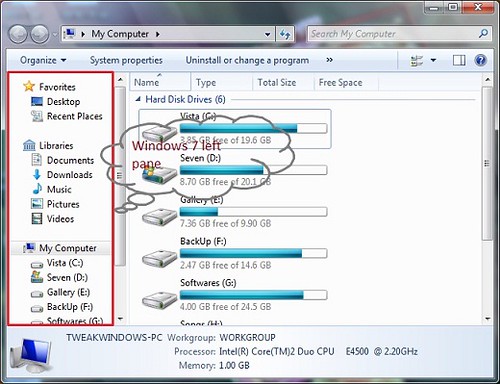
However, note that we can’t get the exact working libraries in Vista. We can give a close Windows 7 Explorer left pane look to Vista by using this method. Below are the screenshots for your reference.
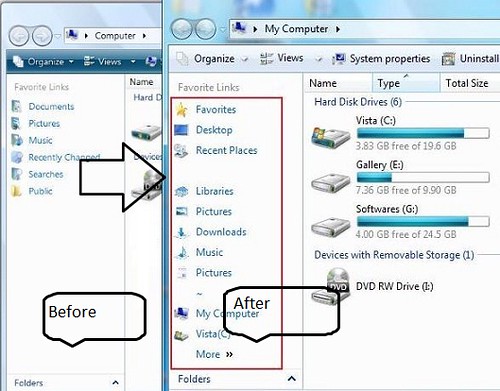
The method is a bit simple. You need to add all the shortcut links to Links directory of Vista. Below is the procedure:
Get Windows 7 style Explorer pane in Vista
Step 1: Open the Windows Explorer. Go to Tools > Folder Options>View > Enable “Show hidden files”.
Step 2: Click on the Appy button and go back to the “C” drive.
Step 3: Navigate to C:\Users\Username\Links. Here, “C” is your Vista drive.
Step 4: Add the shortcuts of the below folders to Links folder using our how to add folders to Favorite links guide.
*Favorite
*Desktop
*Recent Places ( This folder will not work actually. Just for the Windows 7 look)
*Libraries
*Picture
*Downloads
*Music
*Pictures
*My computer
*Your drive
*Your drive
Step 5: Download Windows 7 icon pack and extract the “Icons” folder to Desktop.
Step 6: Browse the folder for the appropriate icon for your shortcuts. Use the above image to get the idea.
Step 7: Right-click on each of the shortcut item in the C:\Users\Username\Links folder >Properties>Customize.
Step 8: Browse for the exact icon from the downloaded icon folder.
If you have followed all the steps above, you are close to the look. Note that, you need to get the space between the folders (between, desktop & Libraries) to get the exact look. Here is how:
A. Create a new folder in C:\Users\Username\Links folder.
B. Right-click, select rename.
C. Press 0160 from the numeric pad by holding the Alt key.
D. It will create a folder with no name.
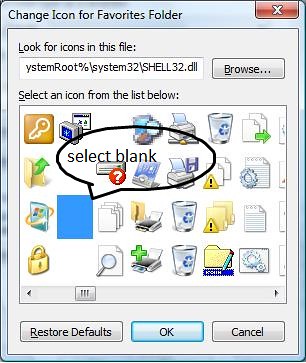
E. Right-click on the folder > Properties>customize> select the blank icon (look below image).
To get the space between the My Computer icon and Pictures to follow the below guide:
1. Create a new folder in C:\Users\Username\Links folder.
2. Right-click, select rename.
3. Press ~ key.
4. It will create a folder with ~ name.
5. Right-click on the folder > Properties>customize> select the blank icon (look above image).
This will give you the exact look of Windows 7 left pane in Vista explorer. I know the procedure is a bit time consuming and confusing. If you have any doubt, please let me know in the comments below.
James says
You can have working recent places if you drag the Recent Items from the start menu in vista to the left pane favorite links area.
Ginette says
why is it that when I open Internet Expoler the 1st windows open full pane but the next one’s are only half???
mukesh says
good services
John Smith says
Umm deleting these blank named folders is tricker that appears!
Try using the cmd command. cd to the links folder. Then type ren “ALT+0160” “Test” then deleted the Test folder. Type the ALT+0160 as you did when you created the folder, i.e hold ALT, type 0160, release ALT – a blank is created.
AAAA says
On top of that guys, Windows 7 is mostly changes to the interface. You can basically change setting in Vista, and install a few things and you have 7 except for the slightly easier driver installation system-which you only have to deal with less than 15 times, depending on how many printer/cameras etc you get. And I’m guessing high.
So you really are practically getting 7, minus a few things lol-once you follow a few tutorials.
Marco says
Very nice trick and usefull tutorial.
No problems at all.
So Great, Thanks..
John says
yes tried that but no customize option comes out. Any other advice?
admin says
@John
Go to %Windir%\username\links and then change the icons.
John says
Hey neat trick! but how do you change the icon of the shortcut in the links? When you right click > properties, there is no “customize” option(unless you have that stardock app). You can change the icon but you need either a dll, ico, icl, exe file and not a png as it is the file type your link for the win7 icons. Please help thanks.Ü
hater says
Why? What is so wrong with vista? You want to make a functional windows explorer less functional? Just close the left pane. That would be the easiest method.
I fail to understand why so many people bad mouth vista and seem to love 7 or else are switching to Mac. Windows 7 is just continuing Microsoft’s trend of trying to look more like the less functional Mac OS.
People are idiots.
Dude says
Hi..
nice guide but how do I make a shortcut to ‘libraries’ please as I can’t seem to find the folder anywhere??
Thanks..
Dude
Kntowrry says
In XP there was a Status option in Windows explorer which gave you the remianing size in the bottom of the Explorer Window. I cannot find that in Win 7. Can anyone?
admin says
Can you be more specific, please?
Evader says
How do you set it so that the “Folders” section is minimized automatically when you open Explorer?
anomi says
“Press 0160 from the numeric pad with holding [Alt] key” hello, how to delete that folder back …
Into Windows says
Switch to Details View to see the folder.Actually you will the modified date of the folder.Just select
it and hit delete.That’s all!
Arketh says
This is pretty neat, but how do you make a shortcut to “my computer”?
Into Windows says
^To create My computer shortcut:
*Right click on “My Computer”,select “Create shortcut”.
*Now,paste this new shortcut in the Links folder.