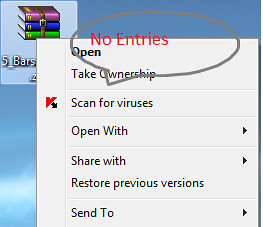
Once again, I am writing this post upon request from one of our long-time readers. Sometimes, WinRAR entry in the right-click context menu disappears even if you have installed WinRAR without any problem. This is annoying as you need to open the WinRAR program from the Start menu to extract archived files.
Fix: WinRAR entries missing from the context menu
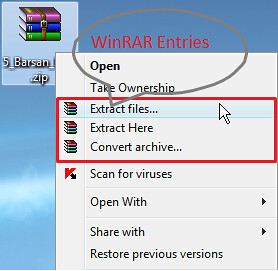
If you have successfully installed WinRAR, you should see the entry in the file context menu. If WinRAR entries don’t show up (like Extract files, Extract Here, and Convert archive), you need to follow the below procedure to restore those entries. The solution is simple.
Step 1: Open WinRAR using the Start menu search or the WinRAr entry in the Start menu. If the WinRAR entry is not present in the start menu or the search is not finding it, go to C:\Program Files\WinRAR (where “C” is your Windows drive), and double-click on the WinRAR.exe file to launch WinRAR.
Step 2: Click the Options menu and then click the Settings option to open the Settings dialog.
Step 3: Here, switch to the Integration tab.
Step 4: Check the option named Integrate WinRAR into shell, and click the OK button. If the Integrate WinRAR into Shell option is already selected, deselect it, click OK, select it again and then click the OK button. Also, make sure that file types are selected in the Associate WinRAR with section.
If the WinRAR entries are not showing up only for specific file types, make sure that that file type is selected in the Associate WinRAR with section.

IMPORTANT: If only select entries are missing from the context menu, click the Context menu items button (present in the Integration tab) and then select entries that you would like to see in the context menu.
You should now see the WinRAR entries when you right-click on ZIP, RAR or 7-Zip files. If not, restart your computer once.
And if you have 7-Zip, check out the fix to missing 7-Zip entry from the context menu.
Mahan says
It worked! thanks a lot.
Mahan says
helped a lot. thank you very much.
Phayvanh says
Thanks so much
sabir says
Thank u mohanprasad
after kill Explorer its works
Or rebooot
Thank u
Ajay Ori says
Works for me on Windows 8.1 Enterprise, after shutting down Windows Explorer from Task Manager. Sure all the integration boxes were ticked.
abdoo says
should restart ur system to complete
septianus putra antonius says
1. open winrar folder, in program files(whether program files x86/x64)
2. double click on rareg.key to register it in registry and click ok
worked for me :)
G.Mohan Prasad says
thanks@TheCuBeMan
TheCuBeMan says
July 18, 2015 at 9:20 am
Very simple…
Follow the instructions in this article (if the option in question under the Integration settings is already checked, then uncheck it and check it again) and you don’t have to restart the entire system, just the Windows Explorer process.
You can do that as follows:
Open up Task Manager and locate the “explorer.exe” process that is running and kill it.
Then, go to File -> New Task, and type in “explorer.exe“. That’s it.
Enjoy.
Sabrina says
Works in Windows 8.1. Thanks so much! :)
leonid blloshmi says
Thank you
rocky45 says
The solution posted by raiel worked fine for me, I’m using Winrar 5.30 Beta 4 on Windows 10 and the dll file did fix the shell context menu not showing problem. Thank you!
Sephtian says
thanks @TheCubeMan it’s work :)
Rob says
Did not work for me :(
Prince says
thank you so much
TheCuBeMan says
Very simple…
Follow the instructions in this article (if the option in question under the Integration settings is already checked, then uncheck it and check it again) and you don’t have to restart the entire system, just the Windows Explorer process.
You can do that as follows:
Open up Task Manager and locate the “explorer.exe” process that is running and kill it.
Then, go to File -> New Task, and type in “explorer.exe“. That’s it.
Enjoy.
princess says
i keep getting the error mesages this Cannot execute “C:\Users\PERSONAL PC\Desktop\Attachments_2015526\WINTEST.EXE”
it has refused to open been trying for days now
please help anyone
Jhoulawliet says
Thanks :)
Mohammed Rifas says
Thank U
mbuso says
Thank you! Its was starting to stress me out! Lol
Sam says
No it don’t work on Windows 7 Ultimate :(
svishch says
I have Windows 7, I’ve tried doing exactly what Phil Goetz said and it’s still not working…what can i do?
Phil Goetz says
J was right: “For Windows 7, uncheck “integrate winrar into shell” and then restart your computer. Then check it.” BUT, you must also restart windows explorer after checking that box.
kees says
Yes it works again!! Thanks very much!
J says
For Windows 7, uncheck “integrate winrar into shell” and then restart your computer. Then go back in and check it. Simple as that. It doesn’t work if you don’t restart.
Mega says
Does NOT apply to Windows 7. SAME version of WinRAR has worked perfectly in two installs of Win 7 and now on a third, it refuses to come up in menu
DiaborMagics says
hummm… I have windows 8 and I have everything checked that I need, but it doesn’t work… any ideas?
Cpprasad says
Thanks For Info.
Ashraf says
Thanks a lot, it works great but you have to check the three boxes under shell integration in setting menu.
Ashraf.
Sagis says
Does NOT work on windows 7… I’ve done EVERYTHING everyone has told me but nothings seems to help…
deo says
Works perfctly on windows 7. Thanks for this
David says
Thanks :D
Pompey says
WORKED for me ,,, this was so simple compared to the other options out there Thanks Dude ,,people like you are needed!!
help guy says
@Vipsis and Doc
On the integration tab don’t forget to select the extensions would you like to associate with winrar. That made it worked for me.
Ricardo says
Solved! Works great for me. Thank you very much (from Mexico)
tom says
Doesnt work in WIndows 7 either
Matthew says
Thank you so much! You have saved me hours of opening winrars and extracting them via the program!!!!!
cindy says
sorry, but it doesn’t solve my problem at all, and my right click context menu is still missing :(
Hari says
My friend thats a good fix , I think it worked on vista before , can you suggest a solution for Windows 7.
This fix doesn’t work on Windows 7:-(
Thanks,
Hari
Karl says
Thanks! It worked perfectly! :)
Armands says
Thank you =) It was easy to fix, but i havent thought of that till now =)
raiel says
Didn’t solve my problem.
The solution I did is downloaded rarext.dll to a dll hosting website, place it to X:\Program Files\Winrar (where x: is your drive) then my context menu returns.
Hope this helps.
Doc says
Doesn’t work here too :(
Vipsis says
doesn`t helped me
Deyaa Addeen Fahmy Shedeed says
New datum, thanks.