Wow!
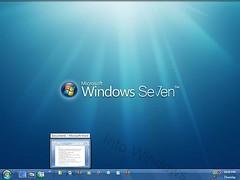
I am starting my guide with this three-letter word. After working for almost 2 hours I got this Windows 7 taskbar on my Windows Vista installation. As you might know by now, Microsoft has introduced a new taskbar for Windows 7 which is completely different from that of the Windows Vista. I was looking around to remove the text from the taskbar and finally succeed as well.
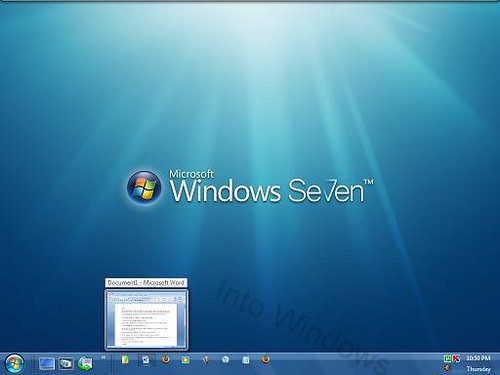
Make Vista taskbar look like Windows 7 taskbar
So, below is the guide to get Windows 7 taskbar on Windows Vista.
Step 1: Download and install EnhanceMyVista from here. Open EnhanceMyVista, go to Customization > Taskbar and select “Iconize your taskbar” option.
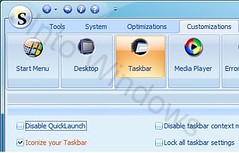
Step 2: Save and close the program. Reboot your system.
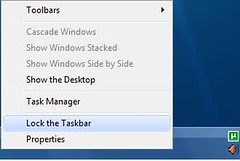
Step 3: Now, right-click on the taskbar, select Unlock taskbar. Once again right click on the quick launch area >View> select “Large Icons”.
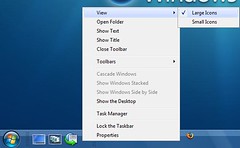
Step 4: Drag the top edge of the taskbar to the up so that you can get a large taskbar like Windows 7.
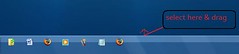
Step 5: After dragging it to match the Windows 7 taskbar size, lock the taskbar again. To do that, right-click on the taskbar and lock it.
Step 7: Download this AERO VG theme and install it using any free software (read How to install third party themes in Vista for more reference). That’s it! You now have the Windows 7 style taskbar on your Vista as well.
If you have any doubts, feel free to ask by leaving a comment. Don’t copy from Into Windows!!
Prithvi says
This does work.
But everyone knows this already……
I wan’t a perfect replica of the windows seven taskbar(Superbar)… : (
kyle says
awsome this actually works thanks :D
admin says
What version of Vista are you running? I mean x64 or x86? Try to run the program as administrator.
williamJr says
sir,why i got error while i’m installing the set up of vistaglazz here’s the screen shot.
hxtp://i39.tinypic.com/xo1dkx.jpg
admin says
No, it won’t make Vista run faster, won’t slow down either.
Cristal says
PLEASE Answer me Forgive this what i am going to type Next it is To Make you see my comment i really need an answer : !!!!!!!!!!!!!!!!!!!!!!!!!!!!!!!!!!!!!!!!!!!!!!!!!!!!!!!!!!!!!!!!!!!!!!!!!!!!!!!!!!!!!!!!!!!!!!!!!!!!!!!!!!!!!!!!!!!!!!!!!!!!!!!!!!!!!!!!!!!!!!!!!!!!!!!!!!!!!!!!!!!!!!!!!!!!!!!!!!!
Does This Task Bar makes vista run faster ?
Anon says
Funny… People actually want this “feature” on Vista and XP. It sucks so bad that I change the settings on the real Windows 7 to make its taskbar behave like the one on Vista and XP. What used to take just one click on Vista and XP now takes two clicks and a long wait between them in Win7! I’m so glad I don’t have to hack Win7 to get it back to the one-click system of Vista and XP :)
christopher says
it looks like it is fast
Aakash says
I am not clear with 4 step
vedat says
help me please how i can fix it
vedat says
when I put my mouse over that pictogrammes, I see no housing around the block file.
sorry for the bad english
John says
Even after this procedure, you don’t get the Internet page previews on the taskbar like in Windows 7. You do get a single preview, but Windows 7 allows you to have multiple previews and jump to any currently open web page from the task bar. That’s the main Windows 7 feature that people are looking for in Vista.
lauren says
what do you mean by: ‘5. Drag the top corner so that you can get a large taskbar like Windows 7’? What are you meant to drag? I’ve managed to unlock taskbar ect but now I don’t get what I’m meant to drag?
lauren says
what do you mean by: ‘5. Drag the top corner so that you can get a large taskbar like Windows 7’? What are you meant to drag?
Ong says
i dont know why but it just does’nt work on my computer.using windows vista home premium SP2.when i tick “iconize your taskbar”,reboot and when the computer starts the taskbars’ tabs(the ones you see when a program is opened)become so small that you cant see the words.
mayank says
not getting installed
Bella says
Thank you so much, the steps were so easy to follow.
Just one question though, When i right click on my toolbar it doesn’t show an options “view > large icons”. Is there any other way I can make the icons larger?
Steve Bliss says
I’ve just tried this on my Vista SP2 system followed all the instructions, theme is loaded but the taskbar DOES NOT work in the slightest – anyone any ideas?
Hans Peeters says
Hi,
I don’t know whether you are still working on this.
I was looking only for a way to ‘iconize’ the Vista taskbar (7 style), although the program overall looks impressive !!
I have followed the instructions on your site but, on my computer is does not work. I have to say however I am using a Spanish Windows Vista.
Could this be the problem?
Regards,
Hans
abiponnappa says
man..relly good 1 but can we do it without by enhance my vista……..
shehan says
wety nice it wroks
Marta Morgan says
Love your site:):)
PENISÜ says
hahahaha xp sucks vista and 7 are cooler it cn do anything!!!!
Matt says
everything worked perfectly and i thank you for that but when i put my mouse over the minimized windows it doesnt show me a preview of the opened window…any ideas?
shend says
The color in too windows 7 on the taskbar that i will on the taskbar in windows vista how i do it
jamie says
i have done all of the steps you have layed out to get the windows 7 theme taskbar and it has not worked. any idea why this would be???
Fathi Sharief says
wow good
win7fan says
i have the real thing. just download vistaglass and use it.and download the official theme to get it just like the real one.
admin says
@Chuck
It works perfectly. You need to know how to install third-party themes in Vista. Follow this guide:
intowindows.com/how-to-install-third-party-themes-in-vista-2/
Chuck says
This does not work .. I mean the tut does, but none of your themes work in Vista Home Premium. They all say “Invalid themefile” …
admin says
@ Evan
It will not slow down your Vista. You can use it!
Evan says
will this slow down vista more i dont want vista slower than it already is
masouudgboy says
thank you for your services.
gulistan says
gud n how to enable live thumbnail view
gulistan says
very very goods window seven he is go long life.
Nealo says
“4. Now, right click on taskbar, select Unlock taskbar. Once again right click on the quick launch area >View> select “Large Icons”.”
I don’t the option “View > Large Icons” and I am running Vista 32?
I’m a bit confused =-S
ali says
gud n how to enable live thumnail view
NoX says
If you REALLY want to make Vista look like Windows 7, go here and you’ll be amazed!
NOTE: Since Vista SP2 came out, the theme along with the other changes you make from the link above will not work. There will be an SP2 update released so just bookmark the site and check back frequently for the update.
Cheers! ;)
admin says
Free works fine.
Afro Ninja says
wait, so do i have to download the enhancemyvista pro or can i get the free version?
admin says
Big Willy,
If you don’t like the new superbar (taskbar), right-click on taskbar > properties > select Use small icons. And also select Never combine option from the drop down Taskbar buttons option.
Big Willy says
How do you change Windows 7 into the regular taskbar? Can’t stand the new one, Can’t see crap unless you move the mouse over it! Step backwards in my opinion.
admin says
Apurav, unfortunately, there are no applications avaialble to make Taskbar button larger. You can use a small taskbar theme which suites with the icons.
Rasenganfan2 says
What? I used the theme and the taskbar is white…
Apurav says
Please help me!
Is there any way to make the application icons on the taskbar larger. I mean large quick launch icons (look cool though) and small application icons look strange.
Thanks in Advance though!
wouter says
evrything except the start button worked perfectly
(i mean that i’ve seen the beta of 7 and the button is different of the one of vista and the skin doenst change the button)
Ken Mason says
Unfortunately, EnhanceMyVista is not stable on x64 Vista Ultimate. The app crashes each time it’s run, with a Windows Explorer message that it’s closing the app down.
Can anyone comment on this?
chris says
Ahh ok I use Firefox and it doesn’t really affect it that much, it does make it slightly bigger I just tried to find a happy medium. For me was size 22.
admin says
^
Thanks.But,the problem is Minimize,maximize and Close button of explorer.They look odd if you change those settings.
chris says
If you want it all the same size as your quick launch bar go to personalise, window colour and appearance, open classic appearance, open advanced, in items choose active title bar and increase it to about 22 and apply. Restart and they will be bigger and in some cases give you a better looking icon somehow.
Leo says
The taskbar buttons of the open applications are still small. So then you see the big buttons of the quick launch along the small ones of the open applications. Not good. Not Windows-7-like.
WinVistaClub says
Thats one great tut there :) Thanks.
Becca says
Question, will this still work if you have a custom theme installed? Has anyone tested that?
m0hr says
doesn´t work @ my Vista sp2 beta v.105 :(
Rob says
Awesome! Now how about a version of how to do it on XP?